
AI4RA Tip of the Week #18
What is an extraction in Vandalizer?
There are a number of tasks that can be accomplished using Vandalizer. From summarizing requests for funding, verifying proposal compliance, to extracting data from documents. Extraction tasks differ from the others in that the goal is identifying and pulling out only the information that matters, in a structured format, rather than requiring you to comb through the whole document yourself. For example, a research administrator can run an extraction on a 20-page RFA and get a list of required attachments in seconds. Extractions differ from other tasks in that they are geared to search for and extract specific pieces of information, similar to the search bar in adobe or word. However, rather than searching for each piece of information one at a time, Vandalizer is capable of finding many pieces of information all at once. Other workflows generate a document as an output while extraction generates a table. Often, this simple streamlining of an otherwise tedious task is enough to save an RA hours.
How to create a basic extraction in Vandalizer
Vandalizer makes extraction easy:
- Upload your document
- Navigate to the library tab
- Select “new” and “extraction”
- Name your extraction something useful related to the document type it will be extracting from, such as “RFA Extraction”
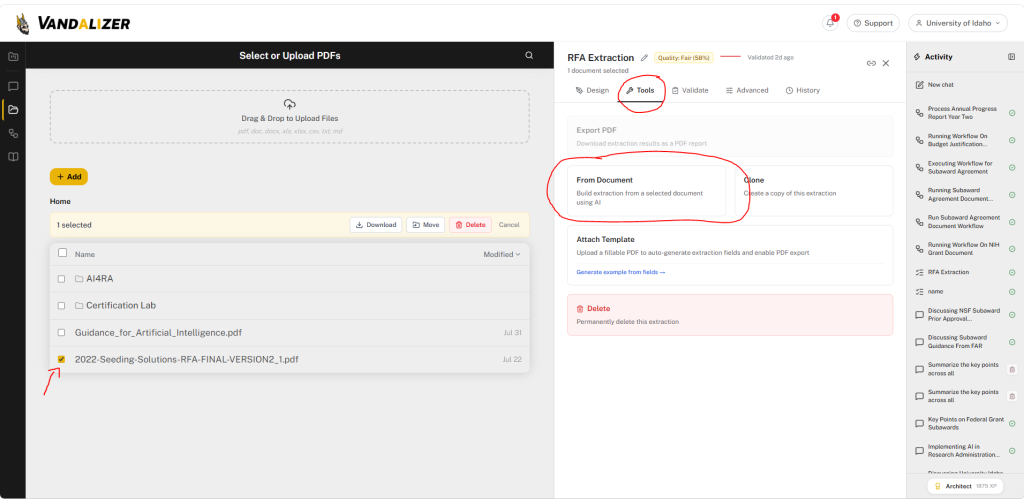
- Select the “tools” tab
- Select “from document” to have Vandalizer automatically identify the information it deems important (make sure your document is still selected). Every time you run the extraction on a new document it will look for these pieces of information.
- Review the list of identified information from the “design” tab, removing anything unnecessary
- Add any missing data types using the text box at the bottom of the list, being sure to type the term exactly as it appears in the document
- Click on your document in the file explorer to open it.
- Run the extraction!
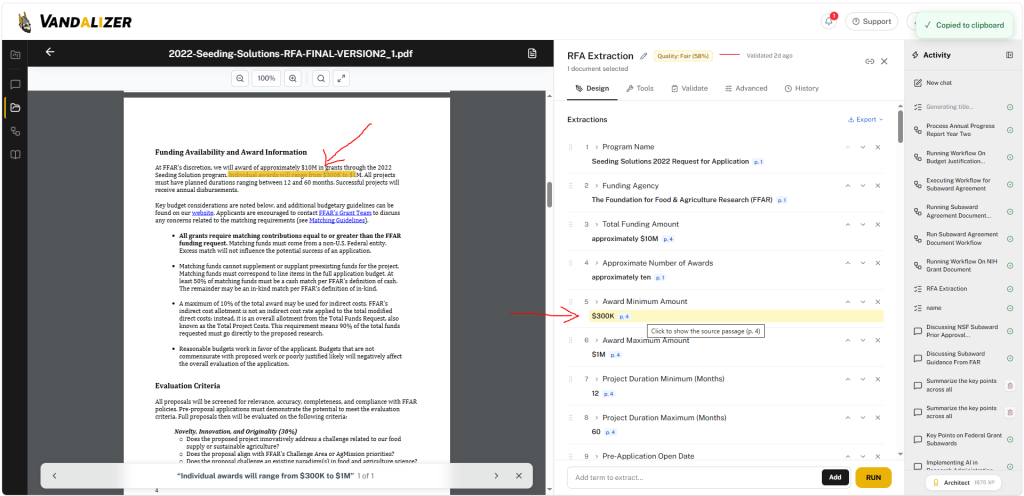
From the extracted list of data, Vandalizer tells you exactly what page the data point came from, even allowing you to select the data point from the list to immediately jump to its location. To view where a piece of information came from, click on it in the table to the right. The source of that extracted data point will be highlighted in the document to the left. You can also export the list as CSV, JSON, or copy it into another document.
How can I learn more about this topic?
AI4RA Office Hours – Occurs every fourth Tuesday at 11 AM PST and includes live Q&A and demos (https://ai4ra.uidaho.edu/#events).
Workflow Architect Certification – Vandalizer internal course which teaches you to become a certified workflow builder. Click on the bubble in the lower right corner.
Support – Click the Support button in the top‑right corner of Vandalizer or submit a request via the AI4RA contact page (https://ai4ra.uidaho.edu/contact/).
Share your questions or success stories
Post them to the AI4RA community forum (https://groups.ai4ra.uidaho.edu/g/main/topics). Your tips help the whole research‑admin community thrive.